Browse the documentation
Home
Applications
Documentation
Game Log & End of Game
The Game Log
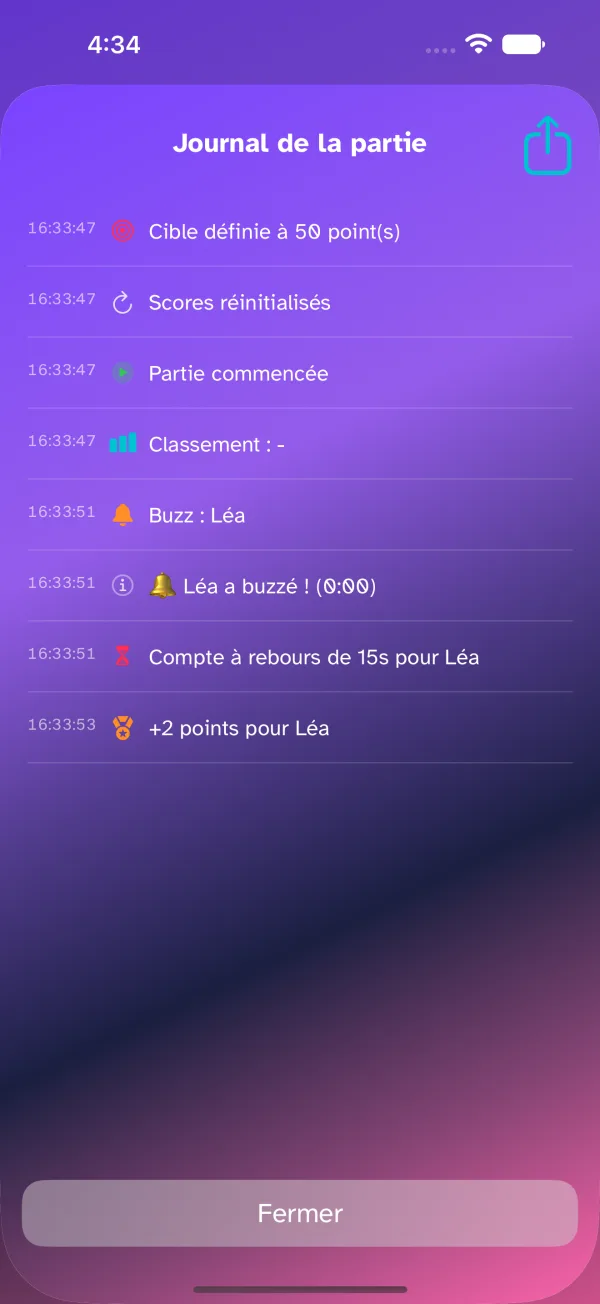
The Game Log lets the Host follow, in real time, all the important events that occur during the game: connections, gameplay actions, scores, system messages.
Types of events recorded
- Connections and disconnections — players joining or leaving the session.
- Gameplay actions — buzzes, submitted answers, points awarded.
- Game progress — start and end of rounds, opening and closing of answers.
- System messages — warnings related to the network or music playback.
Viewing the log
- On the host's screen, open the More menu (⋯) in the bottom bar.
- Tap Game Log. On the Mac, the log is also in the window toolbar.
- Scroll through the list to review the events in chronological order, from most recent to oldest.
During close rounds, check the log to verify the exact order of the buzzes. If a player reports a connection issue, the system messages will tell you the cause.
Ending the game
As the Host, you can end the game at any time. This action calculates the final scores and displays the scoreboard on every device.
Stopping the session
-
Open the More menu (⋯) in the bottom bar and tap End the game, in red at the very bottom of the menu. On the Mac, the command is also in the window toolbar.
-
A confirmation window appears: "Do you really want to end the game and show the results?"
-
Confirm to close the session.
What happens after stopping
- The music and the current round stop immediately.
- The scores of all players are finalized.
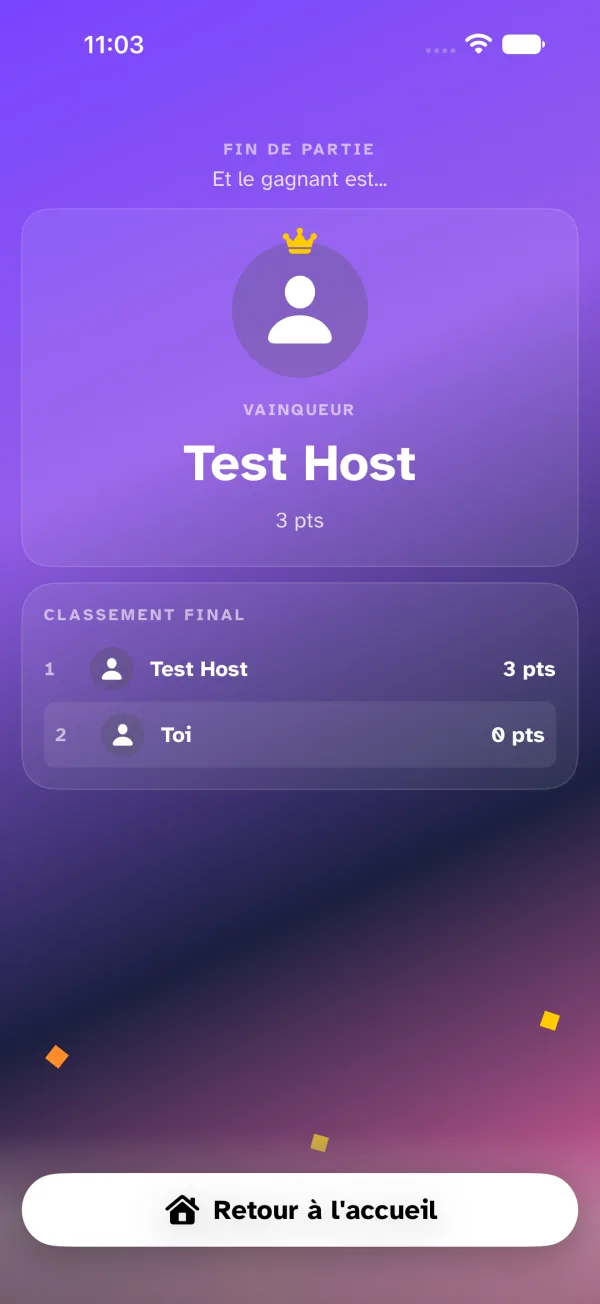
- The game-over screen appears, on your device and on the players': the winner with their avatar and points (or No winner if there was nobody to rank — End the game crowns the leader, target reached or not), then the final leaderboard as rows — rank, avatar, name, points, ties sharing a rank.
- On your device, a victory tune plays over the podium — Triumph of the Brave (MusicLFiles, Pixabay), 22 seconds, once; its credit shows below the leaderboard. The players' phones stay silent: your speaker is what the table hears.
- Return to Home, at the bottom, releases the game; you can set up a new one.