
Browse the documentation
Home
Applications
Documentation
Host a Game
As the Host, you control the music, reveal the hints and manage the entire flow of the game. Players join your session over the local network from their own devices.
Requirements
- An active Apple Music subscription on your device.
- All participants connected to the same Wi-Fi network (or within Bluetooth range).
Create a game
- Open Play Guess and Reveal.
- On the home screen, tap the big Host a game button — you pick the music.

- Configure the game options (see below).
- Select the music source from your Apple Music library.
- Wait in the Waiting Room while the players connect.
- Start the game once the participants are ready.
Game options
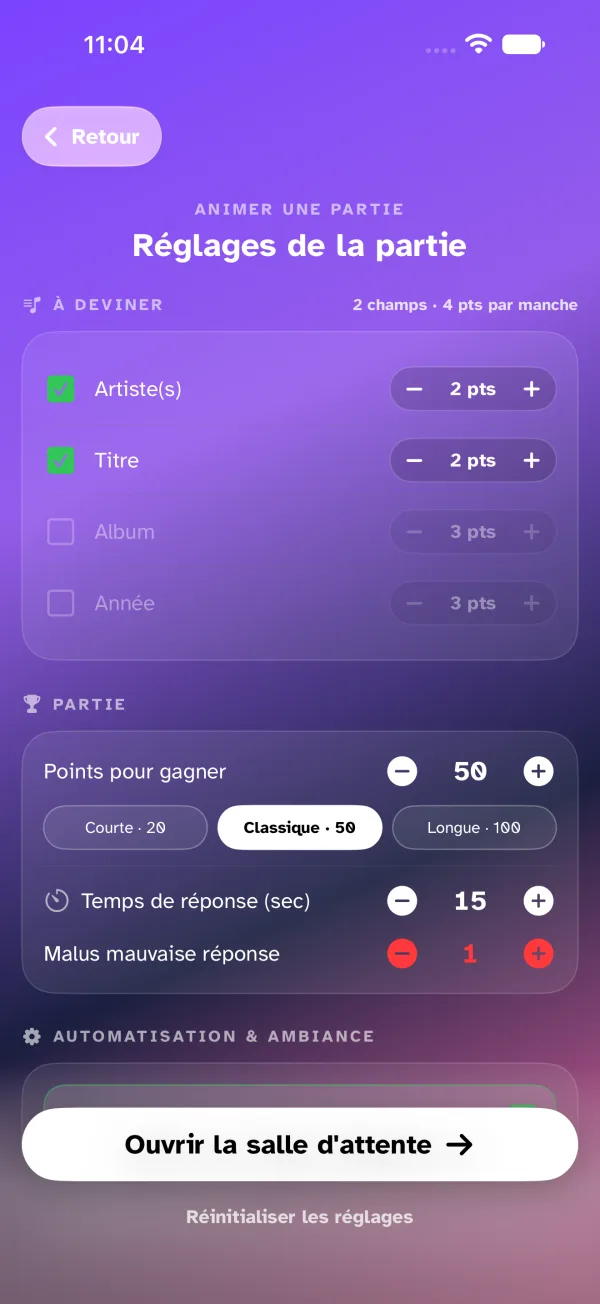
These settings are available before the game starts. They define the rules and the pace of play.
To guess
One line per field — artist, title, album, year — with its checkbox and its points (1 to 10). Tick what players will have to find; an unticked field fades out and keeps its points for later. The card's title keeps the count: "2 fields · 4 pts per round". With no field ticked, the open button stays off.
Game
- Points to win — the score to reach (10 to 200), with three shortcuts: Short · 20, Classic · 50, Long · 100.
- Answering time — the seconds given to the player who buzzed (5 to 60).
- Wrong answer penalty — the points deducted (0 to 10).
Automation
- Ambient sound at end of round — turns the background music of the end-of-round screen on or off, on the host's device. The track is royalty-free and its credit is shown on screen.
- Music volume — from 0 to 100%, in steps of 10, with − and +: the music between rounds and the victory tune, on the host's device. 60% by default; the setting is dimmed when the ambient sound is off.
- Auto-resume playback — automatically resumes the music after an in-game action.
At the bottom, Reset settings restores the defaults. Settings are saved when you open the waiting room and restored for the next game.
How a round plays out
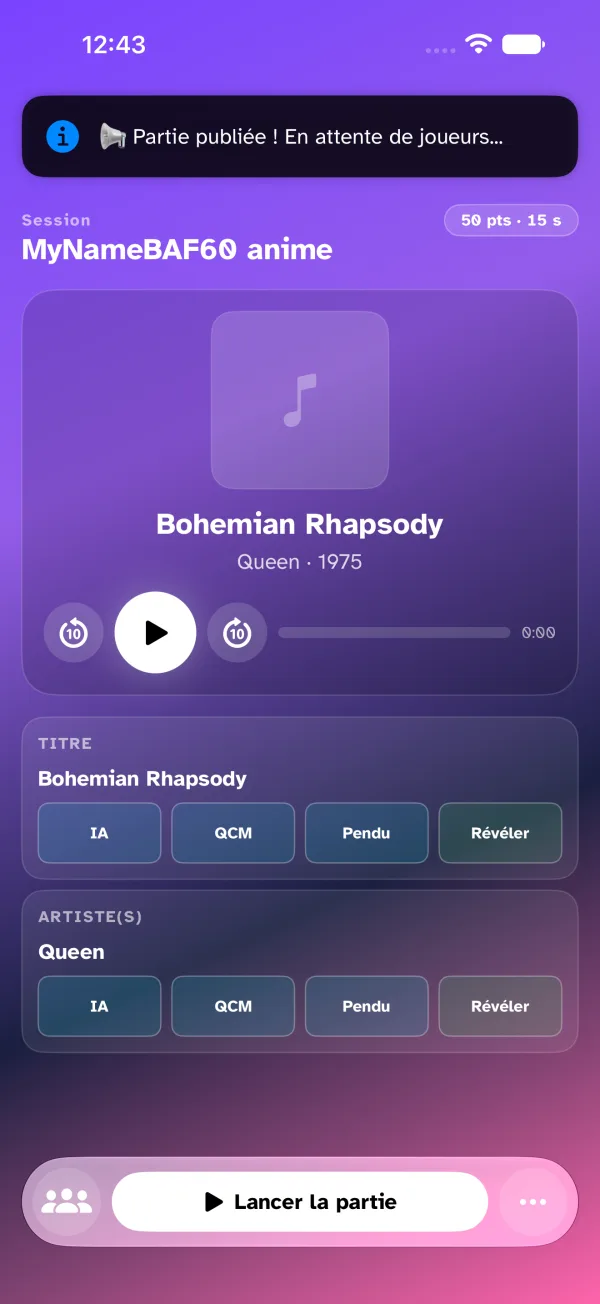
- The music starts automatically after the preparation countdown.
- Players submit their answers from their devices.
- Reveal hints if needed (Hangman, field reveals, 4-choice quiz).
- Validate the correct answers and award the points.
- Show the Round Recap before moving on to the next track.
The app automatically calculates points based on the speed and accuracy of the answers, as well as consecutive winning streaks.